Molecular Dynamics on bwVisu
Welcome to the Molecular Dynamics Tutorial for bwVisu!
This tutorial will guide you through running short Molecular Dynamics Simulation on bwVisu. Please follow these steps carefully. Any feedback on the tutorial is welcome! Feel free to contact us!
This tutorial is intended as a follow up to a structure prediction using either AlphaFold or Boltz.
Note that only proteins, DNA and small molecules can be treated with this workflow. If you have more complex systems, contact us to discuss a solution.
Step 1: Access bwVisu and Start Jupyter
Go to https://bwvisu.bwservices.uni-heidelberg.de/ and log in with your credentials and one-time password.
Choose Jupyter and start a new session. Now you can select the resources you need.
For the Molecular Dynamics Simulation we will need a GPU of type A40.
You also need access to the python environment, so set the Kernel Path to the OpenMM kernel at /mnt/sds-hd/sd25g005/openmm/share/jupyter/.
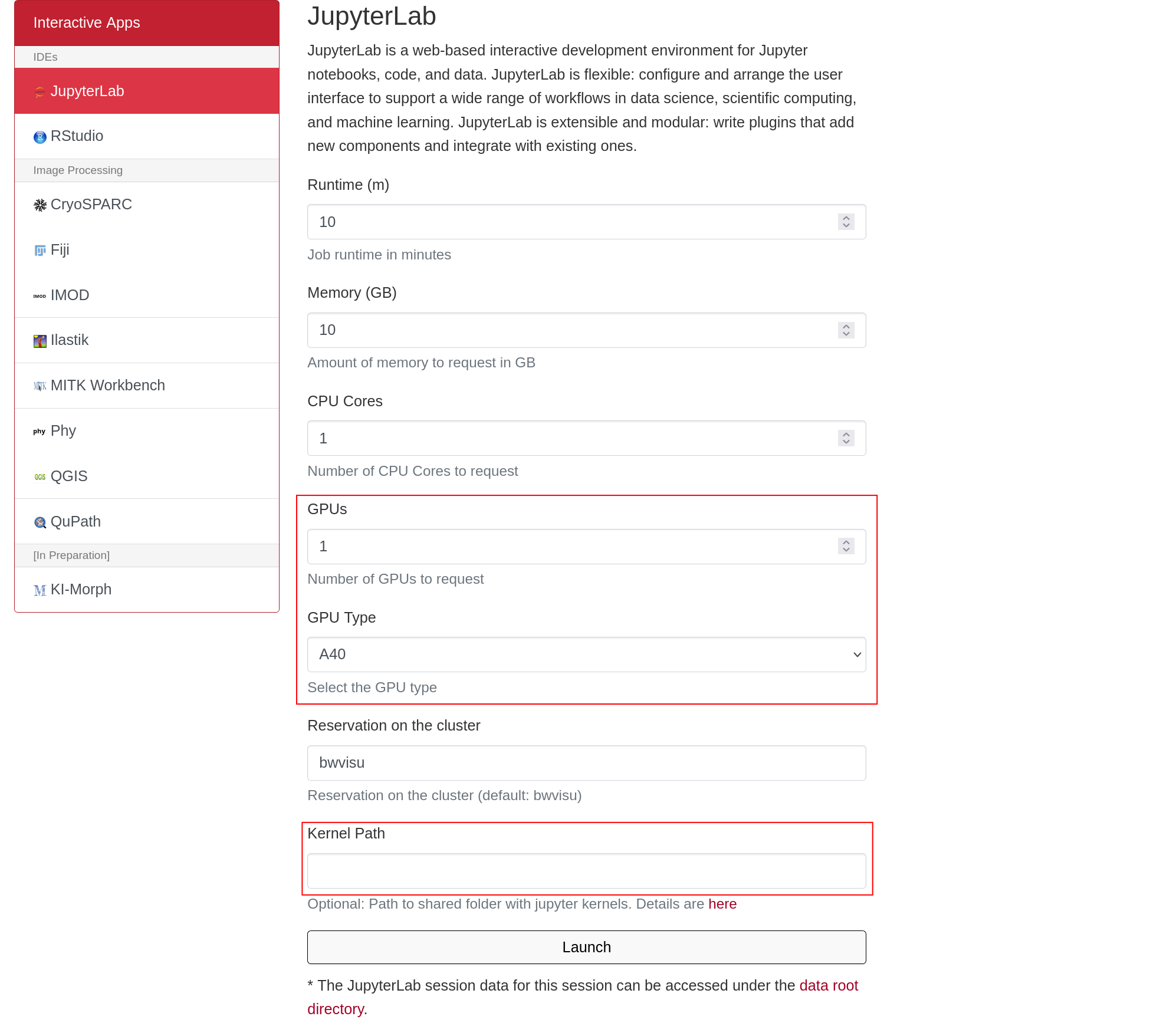
Click on "Launch". This will bring you to a new screen showing your interactive sessions. Wait for your session to be ready, then click on "Connect to Jupyter". This brings you into a JupyterLab environment.
Step 2: Go to your Working Directory and Upload Files
Next all required files need to be present in the same directory as your predicted structure. Take the Molecular Dynamics notebook from our github and upload them by clicking on the upload button:
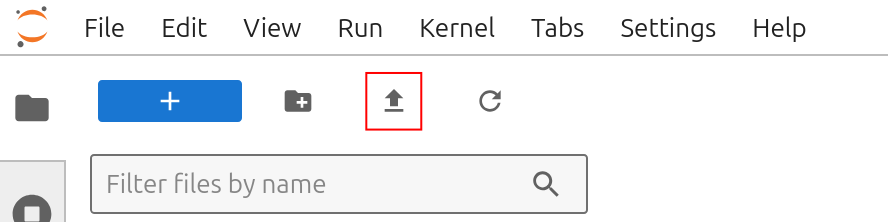
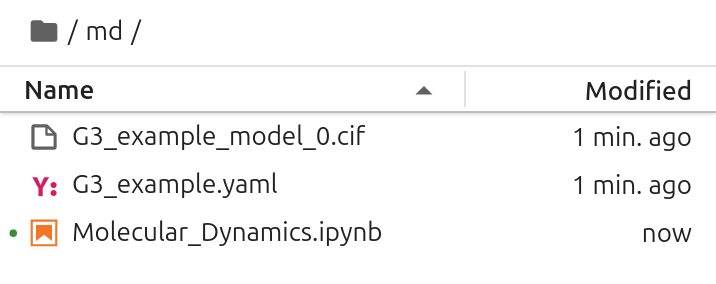
Make sure that the output of your structure prediction is in the same directory as the Molecular_Dynamics.ipynb notebook.
- if you ran an AlphaFold prediction, you just need the
.ciffile - if you ran a Boltz prediction with small molecules present, you need the
.ciffile and the input.yamlfile
It should look like this:
Step 3: Start the Simulation
Open Molecular_Dynamics.ipynb, add your .cif file (and in case of Boltz your input .yaml) in the notebook and then execute all the cells in the notebook to start your Molecular Dynamics run! Remember to set the kernel in the top right of the notebook to "openmm".